
Sequentum Enterprise 2.83.1 is a security release, and we recommend it for every customer on 2.83.0 or earlier. It tightens access control on the agent service API, protects stored credentials, and restricts what agents and web pages can reach on the server. It works with Agent Control Center (ACC) 5.0.1, and with earlier ACC versions as described below.
Note: Several of these changes alter existing behavior. Read Before You Upgrade first, especially if you use Agent Control Center (ACC), call the API from your own tools, or back up the Sequentum Enterprise data folder with your own scripts.
Before You Upgrade
-
If you plan to move to ACC 5.0.1, upgrade every Sequentum Enterprise server to 2.83.1 first. ACC 5.0.1 sends the access key in a header that 2.83.0 and older can't read. ACC 5.0.1 works with servers on any version.
-
Update your own scripts and backups that use
application.db,pmonitor.dborschedules.bak. They move toC:\ProgramData\Sequentum\Sequentum Enterprise\Data\. -
Close designers and let agent runs finish before you upgrade, so the databases can move. See Data Folder and Databases.
-
Check the key ACC uses for each server. Runs from ACC need a Full key or the ACC Default key, and Stop Server, Start Server and Update SE need a server-wide key. See Agent Control Center.
-
Check agents that load local files, or reach sites or e-mail servers with untrusted certificates. See Browser, Certificates and Local Files.
-
Check your own API tools against API Callers. Calls without a key, reserved parameters and several agent operations are refused now.
-
Plan your rollback. Going back to 2.83.0 needs one command first. See Going Back to an Older Version (Rollback).
-
Settings no longer move between machines. Application settings are now encrypted for the machine they are on.
Security Improvements
This release fixes the findings of a security audit of the agent service API, the designer and the agent runtime.
API Access Control
-
Calls without an access key can no longer manage the server or its agents: server administration, ACC settings, licence changes, deleting, moving, deploying and synchronizing agents, and reading agent run logs. On servers that don't require keys, running and stopping agents, reading status, progress and data, and managing schedules still work without a key.
GetAgentSessionsAndParsJsonnow needs a key. -
An access key limited to a directory now stays inside that directory for every operation: agent paths, deploy, delete, move, synchronize, create, file uploads and archive imports.
-
Server-wide actions need a server-wide key. Only the ACC Default key can set the ACC address or activate, change or deactivate the licence. Stop Server, Start Server and Update SE need the ACC Default key or a Full key with no directory.
-
Deactivating the licence no longer turns off API key required.
-
An IP address key works only from its IP address. Its value can no longer be used as a password from elsewhere.
-
A refused access key is no longer written to the server error log or returned to the caller.
-
Run and schedule calls can no longer set reserved control parameters, such as
acc_url_,acc_log_path_orrun_id_, except where ACC uses them. Run notifications go only to the ACC address stored on the server. -
Session IDs, log levels, log paths and other values passed to agent runs are validated and escaped.
Network and Certificates
-
New installs serve the API over HTTPS on port 8005. Plain HTTP (8004) and SOAP (8003) accept callers on the same computer only. Upgraded servers keep their current settings, unless they never saved application settings (see Agent Control Center).
-
The service reads the access key from the
X-Api-Keyheader, as ACC 5.0.1 and later send it. A new Configure Service option can refuse keys sent in the URL. -
HTTPS certificates the service creates from 2.83.1 on (new installs, or when port 8005 has none) have a subject alternative name and a non-exportable key, and renew themselves before they expire. On upgrade, the existing certificate is kept.
-
The embedded browser, the agent's Windows HTTP client and its e-mail now refuse invalid TLS certificates unless the agent allows them. Sequentum Enterprise's own connections (ACC, cloud settings, Dropbox, proxy providers, updates) always check certificates. An administrator can trust an on-premises ACC's own certificate (see Agent Control Center).
Stored Data
-
Agent files no longer carry the licence key. Application settings and the saved ACC login are encrypted with Windows DPAPI instead of a built-in key.
-
Only administrators can change the settings, licence and key files the service reads in
C:\ProgramData\Sequentum\Sequentum Enterprise. The API access keys are readable by administrators and the service only. -
Agents the service moves or deploys keep the permissions of their parent folder. They no longer give all authenticated users full control.
Agents, Files and Updates
-
Agents open local files only from a local page or when the agent author chose them (the start URL, a typed URL, a list, CSV, database, input parameter or a Calculated Value that no script changes), never because a web page links to them or supplies their name, and never open network shares.
http://filesystem/serves only the agent's own local page loads. -
Agent archives are checked for paths outside their target folder and for size, entry-count and compression limits. This covers the service and the designer: agent exports, templates, template libraries, schedule imports and files downloaded from ACC.
-
Database table, column and database names are quoted for SQL Server and PostgreSQL.
-
Software updates install only a newer version, downloaded over HTTPS from
download.sequentum.comand signed by Sequentum.
New Features and Fixes
New
-
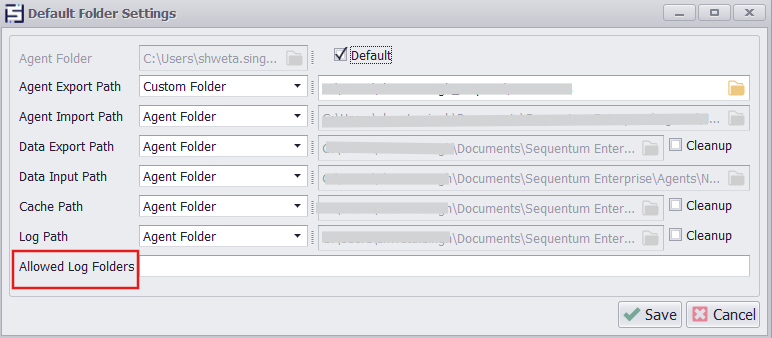
Allowed Log Folders (Default Folder Settings): an administrator can list folders outside an agent's log folder where schedules and ACC runs may write their logs.
Default Folder Settings -
Trusted ACC Certificates (Application Settings → Agent Control Center): an administrator can trust the certificate of an on-premises ACC that Windows doesn't trust, as entries of the form
address SHA-256separated by;.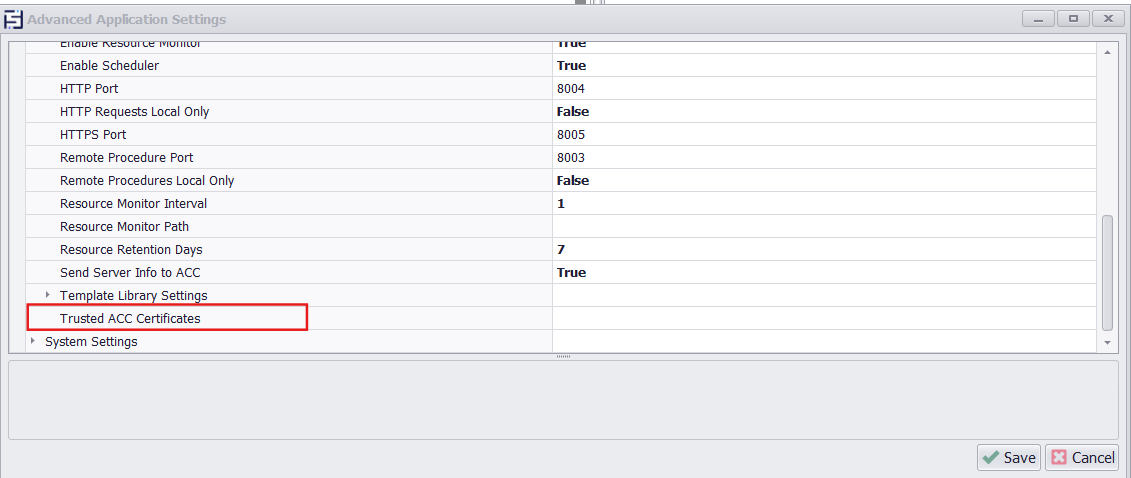
Advanced Application Settings
-
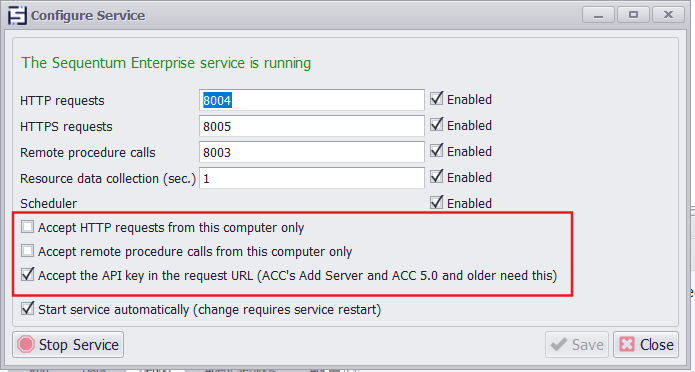
Configure Service has three new options: HTTP local only, SOAP local only, and accept the API key in the URL. It asks before you turn off keys in the URL, since ACC's Add Server, and ACC 5.0.0 and older, send the key that way.
Configure Service -
Allow Local File Access (agent settings, Web Browser)
Allow Local File Access -
Allow Local File Access at Design Time (off by default) does the same; restart the editor after changing it.
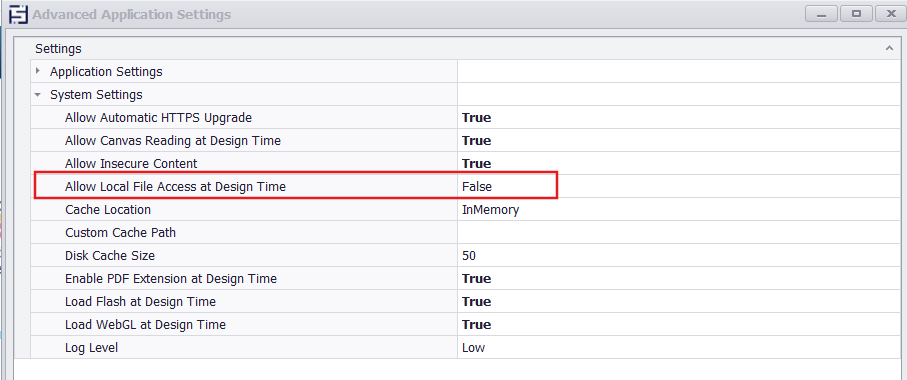
Allow Local File Access at Design Time -
Script API for the application database: every script's
argsnow hasApplicationDatabaseFolderPath,ApplicationDatabaseFilePathandGetApplicationDatabaseConnection(). With SQLite the connection is read-only; with SQL Server, PostgreSQL or MySQL both paths arenull. These members need 2.83.1 or later. -
Sequentum.exe -prepare-downgradeprepares a server to go back to an older version. See Going Back to an Older Version (Rollback).
Fixed
-
Moving agents picked from search results works with ACC 5.0.1 and 5.1. If a move stops part-way, the designer says how many agents were moved, and agents already in the destination are skipped.
-
The designer shows ACC permission refusals as "Not Permitted" with ACC's reason, instead of a login prompt or raw error text. New Directory checks folder names against ACC's rules before sending them.
-
Edit Server and Test Access no longer depend on ACC returning the server key. The key field in Edit Server opens empty; leave it empty to keep the current key.
-
Two starts of the same agent session at the same moment no longer both run; the second is refused as already running.
-
ACC status messages with line breaks or non-Latin characters now arrive intact.
-
SQL Server and PostgreSQL table, column and database names containing
]or"now work. -
A session's CSV and Excel zip downloads use safe entry names when the session ID contains characters not allowed in file names.
-
When the same connection name exists server-wide and in an agent's
Shared\Connectionsfolder, the server-wide connection is used, as in 2.83.0, and the run error log names both files. Manage Connections and the FTP and Email dialogs refuse a name that is already used. -
Schedules added through the API without input parameters now run. 2.83.0 failed them with "Value cannot be null".
-
The ACC server info interval is saved as sent and used at once, server info starts again after it was stopped, and a stored value outside 1 to 1440 from an older version is clamped to that range.
-
SetAgentSchedulewith an empty log level now schedules with None, instead of creating a task that fails every run. -
A log path that ends in a backslash no longer breaks the rest of the agent's run options.
-
A repeated update request while an update is running no longer starts a second installer.
-
RunAgent prints an error it can't log yet, such as an unreadable settings file, instead of only "Please check log file".
-
Agents saved before 2.83.1 keep ignoring certificate errors, so they load intranet, self-signed and TLS-inspected sites as before.
Behavior Changes and Upgrade Notes
There are no database schema or agent file format changes. Existing SOAP and REST clients keep working unless they use one of the calls or values listed under API Callers. The changes below affect specific setups.
Agent Control Center
-
ACC versions: ACC 5.0.1 works with every Sequentum Enterprise version: it sends the access key in the URL to 2.83.0 and older, and in the
X-Api-Keyheader to servers it has seen on 2.83.1 or later. ACC 4.9.0 and 5.0.0 keep working with 2.83.1. ACC 5.1.0 sends the key only in the header, which 2.83.0 and older can't read, so upgrade all servers to 2.83.1 before moving to ACC 5.1.0. -
Accept the API key in the URL stays on after the upgrade. Turn it off only when every caller sends the
X-Api-Keyheader: ACC 5.0.1 or later, once it has refreshed the server since its upgrade to 2.83.1, and your own tools. ACC's Add Server sends the key in the URL in every ACC version, so adding a server from ACC is refused while the option is off; turn it on while you add the server. -
ACC address: only the server's ACC Default key can set or change the ACC address. If Test and Reconnect fails with "This server has no ACC URL yet", open Application Settings → API Access on the server, tick ACC on the key ACC uses for this server, save, and reconnect. Only one key can have ACC ticked: ticking it on a key takes it, and the rights to set the ACC address and to activate, change or deactivate the licence, from the other key. Servers deleted from ACC, or whose licence was deactivated, on 2.83.0 or older have no ACC address after the upgrade. The ACC server info interval must be 1 to 1440 minutes. A stored interval outside that range, which 2.83.0 accepted, is treated as the nearest allowed value.
-
ACC runs report only to the ACC address stored on the server. A run is refused when the server has no stored ACC address, or when ACC server info is off and the run names a different address. If ACC has moved to a new address, runs stop with an ACC error after about two minutes of retries; reconnect the server from ACC with the ACC Default key.
-
Keys ACC uses: runs, job runs, deliveries and schedule saves from ACC need a Full key or the ACC Default key; a Run-only key is refused. Stop Server, Start Server and Update SE need the ACC Default key or a Full key with no directory. Servers added with the designer's Create Local Server use a directory key, so ACC shows these actions as failed. In ACC's Edit Server, give ACC a suitable key. An IP address key that matches ACC's host is used instead of the key ACC sends; if that IP key is limited to a directory, Stop, Start and Update SE are refused, so remove its directory or make it the ACC Default key.
-
Agents outside their own folder: ACC can no longer deploy over, move or delete an agent whose file isn't in its own
Name\Name.scgfolder, such as one saved directly in the key directory or in a folder shared with other agents. Nothing is moved or copied; the refusal says "The agent … must be in its own folder inside the directory of the access key". Move it into its own folder first; the next deploy from ACC then works. To keep its run data from the old place, run it once in its new folder before deploying. To remove only its records, call SOAPDeleteAgentwithout deleting files, then remove the files by hand. ACC's cluster deploy can report success even when the server refused it; the server's error log says why. -
Agents that share their folder: ACC can no longer move an agent, deploy it to another directory, or delete it with its files when its folder also holds another agent, such as a copy saved next to it or another agent in a subfolder. Nothing is changed; the refusal says "The agent … cannot be moved" or "cannot be deleted with its files, because its folder also holds another agent" and names that agent. Move the other agent into its own folder first. Redeploying the agent in place still works, and so does deleting an agent whose folder holds another agent in its own subfolder; that agent is kept.
-
New servers: on a new install, register the server in ACC with SSL on and port 8005. ACC 5.1.0 turns SSL on by default; on an upgraded server that still uses HTTP on port 8004, untick it.
-
Same-computer-only HTTP and SOAP: on new installs, and on upgraded servers that never saved application settings (no
ApplicationSettings.dat), plain HTTP and SOAP accept callers on the same computer only, including calls through its host name or its own addresses. For a remote ACC or script on such a server, use HTTPS on port 8005, or untick HTTP local only in Configure Service. -
On-premises ACC with a self-signed certificate: Sequentum Enterprise now checks ACC's certificate, so the designer's ACC login and downloads, run notifications, agent config and repository downloads need a certificate Windows trusts, or an entry in Trusted ACC Certificates (Application Settings → Agent Control Center). When ACC's certificate is refused, the error gives its SHA-256 fingerprint and the entry to add; compare the fingerprint with the ACC server's certificate before you add it. An expired trusted certificate is refused with its own message: renew the ACC certificate, then replace the entry.
-
Repository schedules need an HTTPS repository URL on the same host and port as the stored ACC address, with a valid certificate; redirects are not followed. Only a Full access key can set a repository, and an update with a Schedule-only key removes it. Existing schedules that don't meet these rules fail when they run and can't be saved again, in the API or the designer. Agent packages downloaded from the repository no longer add or change the server's schedules.
HTTPS Certificate on Port 8005
-
The upgrade keeps the certificate already bound to port 8005, and never changes a certificate an administrator bound there.
-
A certificate created by 2.83.1 is valid for one year and renews itself 30 days before it expires. The service log names each certificate it binds to port 8005 (on a new install, a replacement or a renewal), with its SHA-1, SHA-256 and public-key SHA-256 fingerprints, its expiry date and what ACC needs to trust it. ACC 4.9.0 to 5.2.0 remember the exact certificate, so after each renewal ACC loses HTTPS access to that server until its stored fingerprint is reset (see Known Issues).
-
Certificates created by 2.83.0 or earlier are not renewed. From 30 days before expiry, the service log says how to replace one. ACC ignores expiry dates, but other clients refuse an expired certificate.
Data Folder and Databases
-
application.db,pmonitor.dbandschedules.bakmove fromC:\ProgramData\Sequentum\Sequentum Enterprise\to itsData\sub-folder during the upgrade.ServerRuntimeSettings.dbstays where it is. Only SQLite databases move. If an agent script left an emptyapplication.dbin the old place, setup and the service delete it. -
If a database is in use during setup, for example because a designer is open or an agent is running, it moves at the next service start. Until then, designers that aren't run as administrator can't run or schedule agents locally. Restart the service, or run
Sequentum.exe -secure-app-dataas administrator. -
Update backup, monitoring and reporting scripts before upgrading. A link at the old path won't work.
-
Agent scripts that open
application.dbat its old path no longer find the data: depending on how they open it, they fail with "unable to open database file" or find an empty database. Use the new script members (see New Features and Fixes), or look inDatafirst and then the old path for agents that also run on 2.83.0. -
The data folder's root can now be changed only by Administrators and SYSTEM. Users keep write access to the
Log,Temp,Cache, browser cache,Data,Templates,AgentTemplates,AssembliesandRuntimefolders, and to the template and script library files. Saving application settings, proxies, cloud settings or named connections, or activating a licence, in the designer shows a Windows UAC prompt when the designer isn't running as administrator. The designer's daily licence check needs no prompt, and its 10-day offline period counts from each user's last successful check. -
After upgrading, review the API access keys, application settings, proxies and named connections on each server.
-
Setup keeps junctions or symbolic links that place
Log,Temp,Cache,Dataor another of these folders on another drive when the target is a folder users can already change, or when an administrator made the link after the upgrade. Other links in the data folder are removed and named in the error log; the data they led to is left in place. Kept links are checked again at every setup and service start. -
Setup gives the Sequentum Enterprise service's own service SID access to the API keys, so the service keeps access if you change its log-on account. If API calls fail with "Access denied to API access configuration file", run
Sequentum.exe -secure-app-dataas administrator and restart the service. -
When Sequentum Enterprise deletes or clears a folder that is a junction or symbolic link, such as an agent data, export or debug folder placed on another drive, it now removes only the link and leaves the files at the target. Re-create the link if the agent should keep using the other drive, and clear the target yourself if needed.
-
Settings are encrypted for the machine they are on. Copying
ApplicationSettings.datto another machine or image doesn't work; configure settings on the new machine instead. A copied or damaged settings, proxy, cloud settings, API key or named connection file is reported by name, with what to do, and API calls are refused until the key file can be read. A saved ACC login copied from another Windows user or machine counts as logged out.
Tasks That Need "Run as Administrator"
-
Viewing or changing the API access keys (Application Settings → API Access).
-
Add Local Server to ACC from the designer.
-
Your own programs that create
AgentApiin their own process with an access key. Without a key, and from SOAP or REST clients, nothing changes. -
Custom export, input, backup, cache or log paths that contain
[ORG], when run from a designer or RunAgent that isn't elevated. The agent stops with a message saying so. Runs started by the service (ACC, schedules, the API) resolve[ORG]as before, and[YEAR],[MM]and[DD]work for everyone. -
Agent scripts that create a new global settings file with
ScriptSettings.LoadGlobalSettingsget empty settings when not elevated, and the log says why. Existing settings files are read as before.
Browser, Certificates and Local Files
-
Ignore Certificate Errors (agent settings, Web Browser) is off for new agents. They refuse sites with self-signed, expired or wrong-host certificates, and HTTPS through proxies that re-sign traffic (such as unblocker proxies or corporate TLS inspection). The log names the setting, and the run ends with page errors rather than Failed; use Success Criteria to fail such runs. Agents saved in 2.83.0 or earlier have the setting on and behave as before. To move one to the secure default, turn the setting off and save the agent.
-
The same setting now also covers parser pages, downloads,
robots.txt, scriptGetData/PostData(with the default Windows HTTP client), proxy verification, the agent's start and status notification URLs, .NET web calls in scripts and export deliveries, and the SMTP server certificate of e-mail notifications and e-mail deliveries. -
E-mail: with the setting off, notifications and e-mail deliveries refuse an SMTP server whose certificate Windows doesn't trust, and, with Use SSL on, a server that doesn't start TLS (use port 465, or a port where the server offers STARTTLS). The login is never sent to a refused server. A refused delivery fails the run; a refused notification is logged and the run goes on. Trust the server's certificate on the Sequentum Enterprise machine, or turn the setting on to send as in 2.83.0, including unencrypted when the server offers no TLS. E-mail that uses the server's default e-mail settings follows each agent's setting, and the designer's e-mail test buttons follow the open agent's.
-
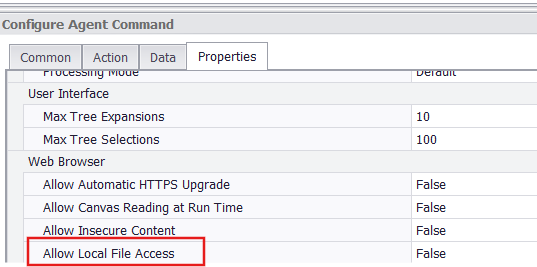
Allow Local File Access (agent settings, Web Browser) decides whether a local HTML page the agent opens in the dynamic browser can read other local files, any web URL and the content of its own frames from its scripts, as saved reports filled in by JavaScript need. Agents saved in 2.83.0 or earlier, and agents made from templates saved before 2.83.1, have it on and behave as before; turn it off for those that don't need it. New agents have it off: their local pages show frames and links but can't read them, and can call a web site only if the site allows cross-origin requests. Web pages never get access to local files, whatever the setting. In the designer, the application setting Allow Local File Access at Design Time (off by default) does the same; restart the editor after changing it.
-
Local files and Windows paths open from a local page, or when the agent author chose them: the start URL, a file capture's Direct URL, or a Navigate URL or file capture data value that comes from a typed URL, a list, a CSV, a database, an input parameter or a Calculated Value that no script changes, whatever page the agent is on. A data or command transformation script on such a Navigate URL or file capture is the author's own code, so its result is trusted too, even when it reads captured data; a script on a Calculated Value, or on the way to one, makes its value count as page data. A value a web page supplied (a link, text or file captured from it, or a Selection, Crawl Website or Data Table Join list) opens a local file only from a local page. A file a Download Document saved in the agent's own download folder (Use Default Directory on), or converted to HTML, opens with the HTML, JSON or XML Parser whatever page the agent is on; from it no other local file opens, except a converted document's own pages. To open such a file in the Dynamic browser after a web page, list the files with a script Data List. In the HTML Parser, a Navigate URL value that is a
file:///URL now opens the file it names. Refused rows are logged as errors. Redirects to local files are not followed.file://localhost/C:/...is read asfile:///C:/.... As in earlier versions, the browser can't open paths longer than 260 characters. -
Network shares (
\\server\share,file://server/...) are never opened, including as a start URL. Copy the files to a local drive. A drive letter mapped in a user's Windows session doesn't exist for the Sequentum Enterprise service, so it works only for designer and RunAgent runs as that user, not for service, schedule or ACC runs. -
http://filesystem/serves only the agent's own loads of local drive paths. Link clicks, forms, popups, frames and redirects get 403. Usefile:///for anything else.
Logs
-
Schedule log paths and
acc_log_path_must be inside the agent's log folder or a folder listed in Allowed Log Folders. Entries there must be full folder paths, and can't be or contain the program, Windows, application data or agents folders or a key's directory. Schedules saved earlier keep their path; until it is allowed, runs log to the agent's log folder and the schedule's exit message says where. A start or ACC schedule withacc_log_path_elsewhere is refused at once, with a message that names the setting. -
GetAgentRunLogsreturns any file in the agent's log folder, and only run log files in<agent>\Logand the agent's saved log path.GetScheduleLogsreturns only logs of the caller's own schedules, from the agent's log folders and the Allowed Log Folders. An agent whose custom log folder isn't a full path (such asLogs) returns no logs through the API or ACC. -
A log path is also refused when a folder in it, below the agent's log folder or an Allowed Log Folder, is a junction or symbolic link, or when the log file is a hard link to another file. A log folder itself may still be a link. Replace such links with real folders.
-
Log-path refusals now end "...or a folder in Allowed Log Folders (Default Folder Settings)". Update automation that matches the exact text.
-
Logs the designer gets from ACC (Run History, Agent Status, Job Schedules and Deployment Schedules) are unpacked into a new folder under
%TEMP%\Sequentum Logs..logand.txtfiles open in their default program; any other file opens as text in Notepad instead of running.
API Callers
-
Calls without an access key (servers with API key required off) are refused for the
Server*run, stop, delivery, input-parameter, load and usage calls and the server administration calls;DeleteAgent,DeleteAgentInBackground,MoveAgent,DeployAgent,SynchronizeAgent,UpdateAgentInputParametersandDeleteAgentSession;GetAgentSessionsAndParsJson,GetAgentLogs,GetAgentRunLogsand backup-data reads;StartJobSchedule; licence changes; and the ACC server info and performance calls.StartAgent,StopAgentandRunAgentReturnData, reading status (GetAgentStatusJson), data and the last log file, and managing schedules (including theServer*schedule routes) still work without a key. -
Licence calls:
ActivateSELicense,ChangeSELicenseandDeactivateSELicenseneed the ACC Default key when keys are required.ActivateSELicensenow takes akeyparameter; older clients still work. A server that requires keys but has no ACC Default key can be reactivated only from the designer or the command line. Deactivating keeps the ACC address. -
Server-wide calls:
PauseServer,ContinueServer,PauseAndUpdateServer, and SOAPCheckWindowsUpdateandPauseAndUpdateWindowsneed the ACC Default key or a Full key with no directory. An IP address key that matches the caller is used instead of the key sent. -
CreateAgent accepts only
Name,Commands,ExportTargetsand the agent's browsable settings, matched by exact name. Any other field, includingDirectoryName,AgentId,FilePathor lowercase names, fails the request; the agent's location always comes from the key. It creates<key directory>\<Name>\<Name>.scg, or uses the default agent folder for a key with no directory. It refuses a name whose folder already holds an agent or other files, instead of replacing it. Body errors come back as{"Result": "..."}. -
Agent folders:
MoveAgent,SynchronizeAgent,DeployAgent,DeleteAgentwith files andDeleteAgentInBackgroundneed agents in their ownName\Name.scgfolder inside the key's directory; agent files placed directly in a key directory are refused. They are also refused, and change nothing, when the agent's folder holds another agent (.scg) that the move or the delete with files would take along; the error names it. Deploying an agent whose ID belongs to an agent in another key's directory is refused. Deploying an agent last saved by a designer on the same machine still works. ASynchronizeAgentthat has to move the agent needs a Full key. With a directory key,DeployAgentFileOrFolder,DeployAgentTextFileandDeleteAgentFileOrFolderneed an agent name. Agent names are refused when they contain a colon other than a drive prefix (C:\), start with a single backslash, or are a reserved device name such asCONorNULL. -
Agent folder permissions: agents the service moves or deploys take the permissions of the folder they land in. If designer users who aren't administrators edit agents in a locked-down agents directory, grant their group Modify on it. The default Public Documents agents folder is unaffected.
-
Session IDs containing
" \ : < > |or control characters, or only dots and spaces, are refused when starting a run or saving a schedule. Existing schedules keep running, but saving them again fails. -
Reserved input parameters (
acc_*,agent_run_id_,run_id_,content_cache_path_,log_to_fileand others) are refused in run and schedule calls from your own tools, and in SOAP global data. A script that starts another agent and passes on an ACC run's input parameters or global data must remove these names first. Values spelled like a run option (log_to_file,log_path,agent_import_folder,agent_import_name,repository_path,-acc_log_path_) are refused too.env_is still allowed. Schedules saved earlier keep running. -
SetAgentSchedule accepts only the log levels None, Low, Medium and High (or 0 to 3).
-
Named connections: with a key limited to a directory,
CreateNamedConnectionwrites to that directory'sShared\Connectionsfolder, and refuses a name that a server-wide connection already uses, a path, or a name that ends in a dot or space. -
Run settings:
AgentSettings.RuntimePathis ignored over SOAP and forAgentApiused in your own process. Over SOAP,LogFilePath,AgentImportFolder,AgentImportNameandPipeNameare ignored too, and such runs log to the agent's default log folder. -
Global data sent through the API accepts only strings, numbers, booleans, characters, dates, times and GUIDs; arrays of these except GUIDs;
List<string>; andDictionary<string,string>without a culture-aware comparer. It is limited to 100,000 entries and 16 MB. Other types fail with an error naming the type. A proxy verification URL must be http or https. TheGetSerializedAgentandSaveSerializedAgentoverloads that take no key always fail. -
Archives over 100,000 entries or 10 GB, or that expand more than 100 times beyond 100 MB, are refused for API deploys, designer imports and repository imports. The designer checks the whole archive before writing anything. An agent export (
.scgx) may hold only its own agent's folder, and Import Template Libraries accepts only theTemplatesfolder that Export Templates writes; a refused zip leaves the current libraries in place. -
Software updates through the API,
UpdateCgor the designer's update check install only newer versions; to install an older version, run its installer. Unsigned or modified installers, and downloads from any other address, are refused (UpdateCgexit codes 24, 25 and 26), andUpdateCgnow returns the installer's exit code. The update into 2.83.1 itself still runs 2.83.0's updater. -
Error messages: several refusal texts changed; for example, a key that isn't valid now gets "The API access key is invalid". Update automation that matches exact error text.
-
Removed public members (matters only to code compiled against Sequentum Enterprise DLLs): the
AgentApi(string licenseKey, bool dummy)constructor, and thecgRuntimePathparameter ofAgentControllerApi.RunAgentMonitorandRunAgentMonitorReturnProcess.
Going Back to an Older Version (Rollback)
Sequentum Enterprise 2.83.0 can't read the re-encrypted settings or find the moved databases, so you must prepare the server before installing an older version.
Note: Do not install the older version until the preparation command has completed successfully.
Steps to Roll Back to an Older Version
-
Stop the Sequentum Enterprise service, close the designer, and let agent runs finish.
-
As administrator, run the following command:
"C:\Program Files\Sequentum\Sequentum Enterprise\Sequentum.exe" -prepare-downgrade -
Install the older version without starting 2.83.1 again.
What the Command Does
The command puts the settings and databases back where older versions read them, and lets them read the API access keys and save the licence files without running as administrator.
It refuses, and changes nothing, in any of these cases:
-
The service or another Sequentum program is running.
-
A database is open.
-
A database is in both the old and the new place.
-
Datais a junction or symbolic link. The message says where the link leads and which files to move back first.
In every case the message says why it refused.
Running the Command from a Script
In scripts, use start /wait with -quiet. Exit code 0 means the server is ready for the older version.
If 2.83.1 Starts Again, or You Decide Not to Downgrade
-
If 2.83.1 or its service starts again after the command, run the command again before installing the older version.
-
If you decide not to downgrade, start the service again and it puts everything back.
After Downgrading
-
The older version's setup makes the data folder writable by all users again.
-
Users log in to ACC again.
-
The 2.83.1 security fixes and the new local-only service options no longer apply.
If a Server Was Downgraded Without the Command
If a server was already downgraded without the command and Sequentum Enterprise won't open:
-
Move out any empty
application.dbthe older version created in the old place (the real data is inData\). -
Reinstall 2.83.1.
-
Run
Sequentum.exe -prepare-downgradeas described above. -
Install the older version again.
Troubleshooting
If you downgrade from 2.83.1 to 2.83.0 without running -prepare-downgrade first, Sequentum Enterprise won’t open and shows this error:
Unexpected Sequentum Enterprise Error
Exception has been thrown by the target of an invocation.
The application will need to close.
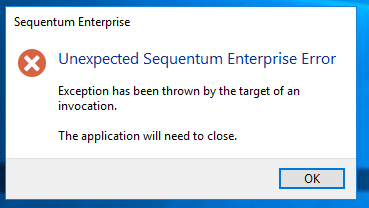
Cause: This happens because 2.83.1 re-encrypts the application settings and moves the databases into a Data sub-folder, which 2.83.0 can’t read. Your data is intact.
To fix it:
-
Back up
C:\ProgramData\Sequentum\Sequentum Enterprise. -
Reinstall 2.83.1. Sequentum Enterprise opens again with all your settings and agents. If you are happy to stay on 2.83.1, you can stop here.
-
To go back to 2.83.0, stop the Sequentum Enterprise service, close the designer, and run the following command as administrator:
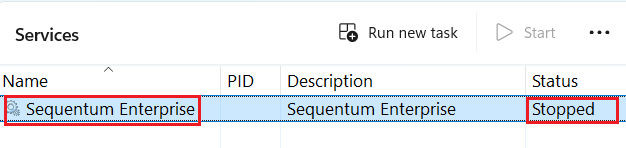
Task Manager SE service
"C:\Program Files\Sequentum\Sequentum Enterprise\Sequentum.exe" -prepare-downgrade

-
The user will observe the notification message below; click the OK button.
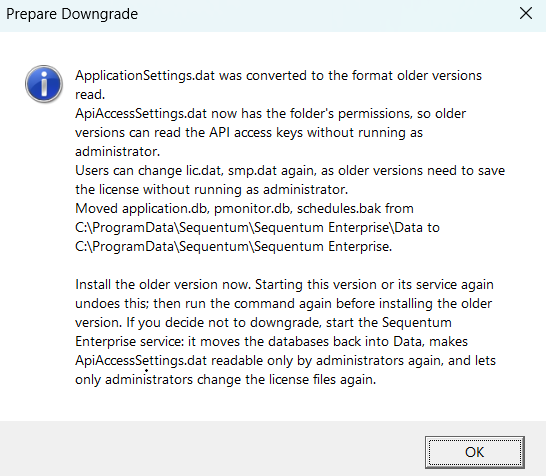
Downgrade popup
Note: If the application is open, the user will see the notification below. At this point, they should close all Sequentum Enterprise applications that are currently open and try again with step 4.
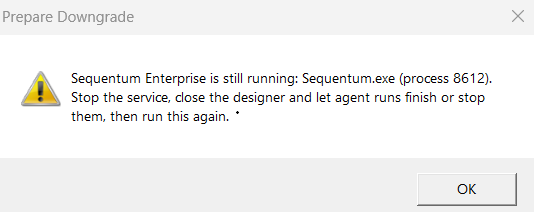
Error if application is still open
-
When it reports success, uninstall 2.83.1 and install 2.83.0.
Known Issues
-
Adding a server from ACC 4.9.0 or 5.0.0 needs an access key, not the licence key. ACC's Add Server dialog asks for the "SE server license key", but 2.83.1 accepts only an existing Full access key. Servers already in ACC are not affected. ACC 5.0.1 asks for the SE server API access key instead and shows SE's reason when it refuses one. To add a server from ACC 4.9.0 or 5.0.0:
-
Activate the licence on the Sequentum Enterprise server.
-
In Application Settings → API Access, add a Full access key with ACC ticked. If ACC is given a local path, set the key's directory to that path.
-
Turn on API key required.
-
In ACC's Add Server, paste that access key into the "SE server license key" field.
-
-
ACC loses HTTPS access after a certificate renewal. ACC 4.9.0 to 5.2.0 store each server's certificate fingerprint and don't update it. After the server's certificate renews, run this in ACC's SQL database and restart ACC:
UPDATE Servers SET CertHash = NULL WHERE IpAddress = '<server address>'. ACC stores the new certificate the next time it connects. Servers ACC reaches over HTTP on port 8004 are not affected. If Sequentum hosts your ACC, contact support instead. -
Agent folders moved by earlier versions keep an "Authenticated Users" full-control entry until they are moved again. Administrators can find them with PowerShell and remove the entry where it isn't wanted:
PowerShellGet-ChildItem '<agents root>' -Directory -Recurse | Where-Object { (Get-Acl $_.FullName).Access | Where-Object { $_.IdentityReference -eq 'NT AUTHORITY\Authenticated Users' -and -not $_.IsInherited } } # then, per folder: icacls "<folder>" /remove:g "NT AUTHORITY\Authenticated Users" -
A data folder that is itself a junction isn't secured. If
C:\ProgramData\Sequentum\Sequentum Enterpriseis a junction or symbolic link, setup leaves its permissions unchanged. Replace the link with a real folder and runSequentum.exe -secure-app-dataas administrator. -
Links to network shares in the data folder are kept only when an administrator creates them after the upgrade. A link counts as an administrator's link only when the Administrators group owns it; create links from an elevated prompt, or run
icacls <link> /L /setowner *S-1-5-32-544. -
Agents set to the Sequentum HTTP client don't check certificates. An agent whose HTTP Client Type (agent settings) is Sequentum loads sites with invalid certificates whatever Ignore Certificate Errors says, as in earlier versions. Where certificate checks matter, use the Windows HTTP client, which is the default.
Important Notes
-
Always run
Sequentum.exe -prepare-downgradebefore installing an older version of Sequentum Enterprise. -
Upgrade every Sequentum Enterprise server to 2.83.1 before moving ACC to 5.1.0.
-
Review the API access keys, application settings, proxies and named connections on each server after upgrading.
-
Test your own scripts, API tools and scheduled automation after the upgrade, since several refusal messages and behaviors changed.