The Centralized folder Options feature allows users to standardize and dynamically structure file paths for exported, input, cached, and logged data. This improves file organization, traceability, and segregation of agent-related output across an environment.
Centralized paths can be configured through the Custom option available in the following locations:
-
Application Settings → Folder
-
Application Settings → Advanced Settings
-
Manage Export Target → Backup
Using this feature, users can generate dynamic folders based on organization identifiers and date components at runtime.
Where to find
-
Application Settings → Folder
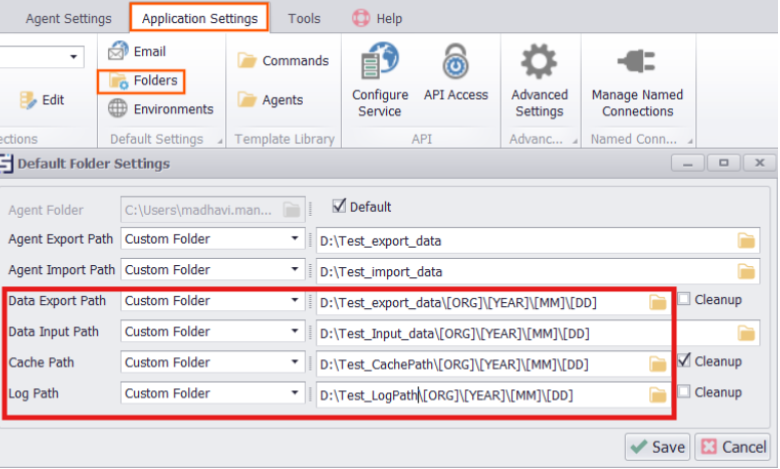
Custom location in folders
The following folder types support dynamic path configuration:
|
Folder Option |
Sample Format |
|
Data Export Path |
|
|
Data Input Path |
|
|
Cache Path |
|
|
Log Path |
|
Excluded Options:
The Agent Export Path and Agent Import Path do not support centralized path configuration.
-
Application Settings → Advanced Settings
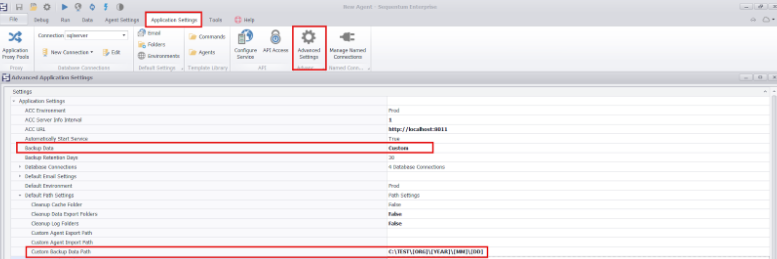
Backup path under application settings
Dynamic paths can also be defined in Advanced Settings using the same placeholders.
Sample Format:
C:\TEST\[ORG]\[YEAR]\[MM]\[DD]
-
Manage export target → Backup
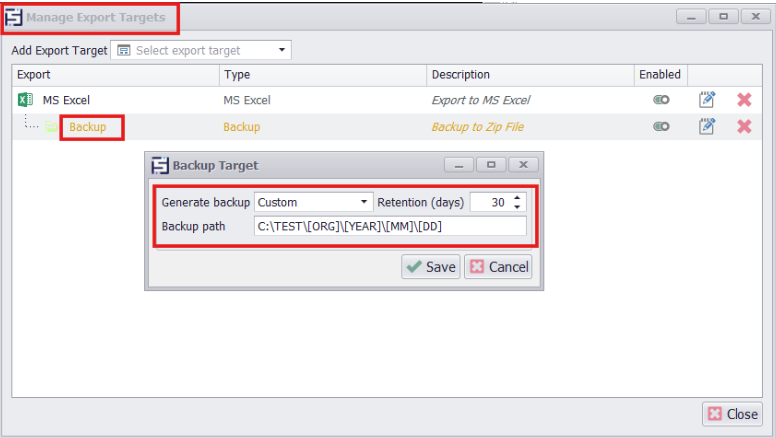
Backup option in export targets
Backup paths support centralized folder structuring as well.
Sample Format:
C:\TEST\[ORG]\[YEAR]\[MM]\[DD]
Dynamic Folder Placeholders
Below are the placeholders that can be used to create various nested folders during the agent run operations :
|
Placeholder |
Description |
|
[ORG] |
Organization name |
|
[YEAR] |
Current year (YYYY) |
|
[MM] |
Current month (MM) |
|
[DD] |
Day (DD) |
How it works
When a user defines a custom path that includes placeholders, Sequentum Enterprise automatically generates the corresponding folder hierarchy each time the agent runs.
For example:
C:\Users\Agent_Path\DataExport\[ORG]\[YEAR]\[MM]\[DD]
At runtime, SE creates:
C:\Users\Agent_Path\DataExport\SampleOrg\2025\11\21
Note:
If an agent is not associated with an organization, the [ORG] folder level is automatically omitted.
Additional points for data input path
When a user selects a Custom Folder for the Data Input Path under Application Settings → Folder, the system now displays warning messages to prevent accidental inclusion of unintended files.
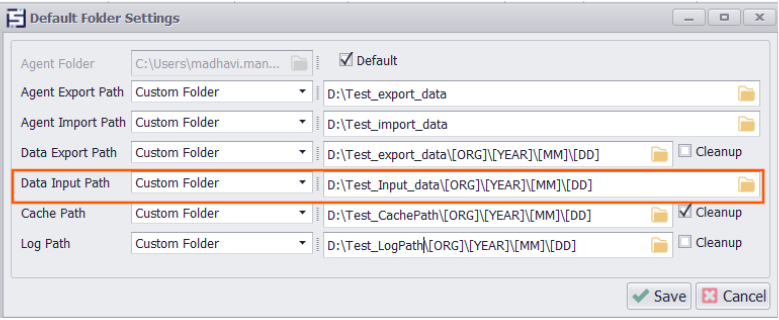
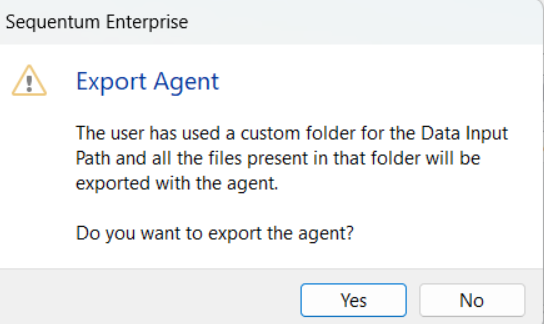
The following warning appears during the following operations:
1. Export Agent
A notification is shown indicating:
"The user has used a custom folder for the Data Input Path and all the files present in that folder will be exported with the agent."
2. Check-In Agent
Triggering Check-In Agent will show a warning:
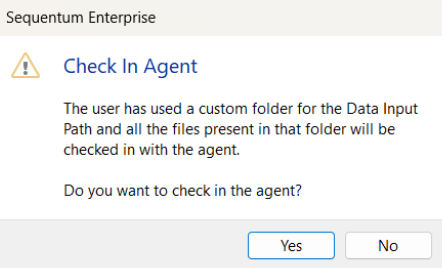
"The user has used a custom folder for the Data Input Path and all the files present in that folder will be checked in with the agent."